
Liquid Transformations with Live Preview
Using the Live Preview console application, we can set a file watcher that automatically renders the output as any changes occur to the source data or Liquid template.
Using the Live Preview console application, we can set a file watcher that automatically renders the output as any changes occur to the source data or Liquid template.
This post is the third in a series about the Liquid language.
The Liquid Blog Series
- Data Transformation in Azure with Liquid
- Unit Tests for Liquid Templates
- Liquid Transformations with Live Preview
Installing the Tool
The tool is available open source and can easily be installed using a Nuget package. It is cross-platform and have been tested on both Windows and Mac. To install, use the following command from the terminal.
dotnet tool install -g AzureLiquid.PreviewSimilarly, you can update to the latest version using the following command.
dotnet tool update -g AzureLiquid.PreviewTool Options
The tool will be available globally and should be executed from the terminal within the folder where your Liquid template is located. The arguments are as follows.
| Argument | Description |
|---|---|
--help |
Shows help description within the console |
--watch |
Switch parameter to enable file watcher and produce output on file update |
--template |
Relative path to the .liquid template source file |
--content |
Relative path to the XML or JSON data source file |
--output |
Relative path to the output result file |
Usage
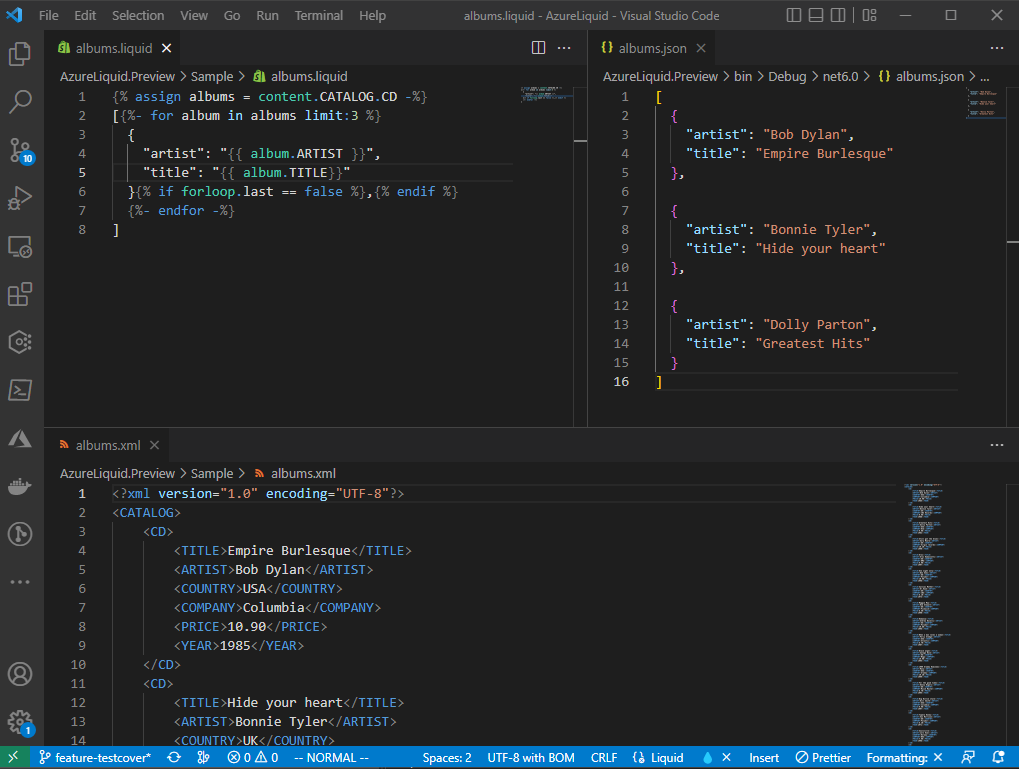
I have simply arranged the three files in VSCode and get preview on the right hand side whenever the template or XML source is changed.
I then use the terminal to start the watcher.
liquidpreview --watch --content ./albums.xml --template ./albums.liquid --output ./albums.jsonThe albums.json file is generated automatically and kept up to date whenever the source data or liquid template is changed.
There are several more examples within the source code repository. If you have any questions, find any issues or have a feature request, then use the discussions section of the repository.

25 years building secure digital solutions for regulated and modern teams.