
Deploying Logic App Standard Workflows
Standard mode Logic Apps behave quite differently when deploying resources. It took much research to find a stable way to deploy workflows and, especially, workflow connections. Here is a walkthrough of the deployment steps.
By using Logic Apps in Azure, we can automate and orchestrate workflows and integrations with many systems using low-code/no-code. These can be deployed in consumption (server-less) or standard mode. The standard mode Logic App service also allows us to use security-minded features such as virtual networks and attached firewall rules, private endpoints and more. These services work well in an enterprise deployment with high security requirements.
However - the standard mode uses a provisioned app service and server farm and behaves quite differently when deploying resources.
It took me a lot of time and research to find a stable way to deploy workflows and, especially, workflow connections. I thought it would be good to share my findings with the community.
Since standard Logic App services uses a file system to store definitions, we need to use a combination of Bicep and Azure PowerShell to update the files correctly.
Deploy the Logic App Service
As mentioned, the standard Logic App service is deployed using a web role.
I would recommend that you deploy the core Logic App service using Bicep. This way, you can change a few parameters and get the service up and running in development, test, production and so forth, using exactly the same configuration.
You should install the Bicep plugin for Visual Studio Code, which gives you IntelliSense and LINTing. Then create a module that will generate the ARM template for the Logic App service. The module below will:
- create a dedicated storage account
- deploy a server farm
- attach Application Insights
@allowed([ 'ts' 'pr' ])param environment stringparam name stringparam logwsid stringparam location string = resourceGroup().location// Set minimum of 2 worker nodes in productionvar minimumElasticSize = ((environment == 'pr') ? 2 : 1)// =================================// Storage account for the serviceresource storage 'Microsoft.Storage/storageAccounts@2019-06-01' = { name: 'st${name}logic${environment}' location: location kind: 'StorageV2' sku: { name: 'Standard_GRS' } properties: { supportsHttpsTrafficOnly: true minimumTlsVersion: 'TLS1_2' }}// Dedicated app plan for the serviceresource plan 'Microsoft.Web/serverfarms@2021-02-01' = { name: 'plan-${name}-logic-${environment}' location: location sku: { tier: 'WorkflowStandard' name: 'WS1' } properties: { targetWorkerCount: minimumElasticSize maximumElasticWorkerCount: 20 elasticScaleEnabled: true isSpot: false zoneRedundant: true }}// Create application insightsresource appi 'Microsoft.Insights/components@2020-02-02' = { name: 'appi-${name}-logic-${environment}' location: location kind: 'web' properties: { Application_Type: 'web' Flow_Type: 'Bluefield' publicNetworkAccessForIngestion: 'Enabled' publicNetworkAccessForQuery: 'Enabled' Request_Source: 'rest' RetentionInDays: 30 WorkspaceResourceId: logwsid }}// App service containing the workflow runtimeresource site 'Microsoft.Web/sites@2021-02-01' = { name: 'logic-${name}-${environment}' location: location kind: 'functionapp,workflowapp' identity: { type: 'SystemAssigned' } properties: { httpsOnly: true siteConfig: { appSettings: [ { name: 'FUNCTIONS_EXTENSION_VERSION' value: '~3' } { name: 'FUNCTIONS_WORKER_RUNTIME' value: 'node' } { name: 'WEBSITE_NODE_DEFAULT_VERSION' value: '~12' } { name: 'AzureWebJobsStorage' value: 'DefaultEndpointsProtocol=https;AccountName=${storage.name};AccountKey=${listKeys(storage.id, '2019-06-01').keys.value};EndpointSuffix=core.windows.net' } { name: 'WEBSITE_CONTENTAZUREFILECONNECTIONSTRING' value: 'DefaultEndpointsProtocol=https;AccountName=${storage.name};AccountKey=${listKeys(storage.id, '2019-06-01').keys.value};EndpointSuffix=core.windows.net' } { name: 'WEBSITE_CONTENTSHARE' value: 'app-${toLower(name)}-logicservice-${toLower(environment)}a6e9' } { name: 'AzureFunctionsJobHost__extensionBundle__id' value: 'Microsoft.Azure.Functions.ExtensionBundle.Workflows' } { name: 'AzureFunctionsJobHost__extensionBundle__version' value: ' use32BitWorkerProcess: true } serverFarmId: plan.id clientAffinityEnabled: false }}// Return the Logic App service name and farm nameoutput app string = site.nameoutput plan string = plan.nameYou would need to call this from a main Bicep script that uses the module above, and also create a Log Analytics workspace and pass its identifier.
Create the Log Analytics workspace:
param environment stringparam name stringparam location string = resourceGroup().location// =================================// Create log analytics workspaceresource logws 'Microsoft.OperationalInsights/workspaces@2021-06-01' = { name: 'log-${name}-${environment}' location: location properties: { sku: { name: 'PerGB2018' // Standard } }}// Return the workspace identifieroutput id string = logws.idThen, put it all together. I use “name” here for the generic display name of the system. You can change or remove it.
// Setting target scopetargetScope = 'subscription'@minLength(1)param location string = 'westeurope'@maxLength(10)@minLength(2)param name string = 'integrate'@allowed([ 'dev' 'test' 'prod'])param environment string// =================================// Create logging resource groupresource logRg 'Microsoft.Resources/resourceGroups@2021-04-01' = { name: 'rg-${name}-log-${environment}' location: location}// Create Log Analytics workspacemodule logws './Logging/ws.bicep' = { name: 'LogWorkspaceDeployment' scope: logRg params: { environment: environment name: name location: location }}// Create orchestration resource groupresource orchRg 'Microsoft.Resources/resourceGroups@2021-04-01' = { name: 'rg-${name}-orchestration-${environment}' location: location}// Deploy the logic app service containermodule logic './Logic/logic-service.bicep' = { name: 'LogicAppServiceDeployment' scope: orchRg // Deploy to our new or existing RG params: { // Pass on shared parameters environment: environment name: name logwsid: logws.outputs.id location: location }}output logic_app string = logic.outputs.appoutput logic_plan string = logic.outputs.planCreating Workflows
A designed workflow can easily be created directly in the Azure Portal. But what if we need to use source control or deploy a templated workflow using CI/CD and pipelines? There is always the option to use the Visual Studio Code plugin and deploy the templates there, but that is again not great within an automated pipeline.
Instead, we now have a storage account with a file share, where the workflows are stored. You simply need to create a folder and upload the .JSON file to activate the workflow.
I use a PowerShell script to do this. I store my workflows inside a folder at ./Workflows and prefix the folder with “wf-” so that the script automatically finds them.
function New-WorkflowDeployment {    Param(
    $ResourceGroup,
    $StorageAccount,
    $Production    )    $ErrorActionPreference = "Stop"    $WarningPreference = "Continue"    # Set path of workflow files    $localDir = (Get-Location).Path    # Get folders/workflows to upload    $directoryPath = "/site/wwwroot/"    $folders = Get-ChildItem -Path $localDir -Directory -Recurse | Where-Object { $_.Name.StartsWith("wf-") }    if ($null -eq $folders) {        Write-Host "No workflows found" -ForegroundColor Yellow        return    }    # Get the storage account context    $ctx = (Get-AzStorageAccount -ResourceGroupName $ResourceGroup -Name $StorageAccount).Context    # Get the file share    $fs = (Get-AZStorageShare -Context $ctx).Name    # Get current IP    $ip = (Invoke-WebRequest -uri "http://ifconfig.me/ip").Content    try {        # Open firewall        Add-AzStorageAccountNetworkRule -ResourceGroupName $ResourceGroup -Name $StorageAccount -IPAddressOrRange $ip | Out-Null        # Upload folders to file share        foreach($folder in $folders)        {            Write-Host "Uploading workflow " -NoNewLine            Write-Host $folder.Name -ForegroundColor Yellow -NoNewLine            Write-Host "..." -NoNewLine            $path = $directoryPath + $folder.Name            Get-AzStorageShare -Context $ctx -Name $fs | New-AzStorageDirectory -Path $path -ErrorAction SilentlyContinue | Out-Null            Start-Sleep -Seconds 1            # Upload files to file share            $files = Get-ChildItem -Path $folder -Recurse -File            foreach($file in $files)            {                $filePath = $path + "/" + $file.Name                $fSrc = $file.FullName                try {                    # Upload file                    Set-AzStorageFileContent -Context $ctx -ShareName $fs -Source $fSrc -Path $filePath -Force -ea Stop | Out-Null                } catch {                    # Happens if file is locked, wait and try again                    Start-Sleep -Seconds 5                    Set-AzStorageFileContent -Context $ctx -ShareName $fs -Source $fSrc -Path $filePath -Force -ea Stop | Out-Null                }            }            Write-Host 'Done' -ForegroundColor Green        }    } finally {        # Remove the firewall rule        Remove-AzStorageAccountNetworkRule -ResourceGroupName $ResourceGroup -Name $StorageAccount -IPAddressOrRange $ip | Out-Null    }}
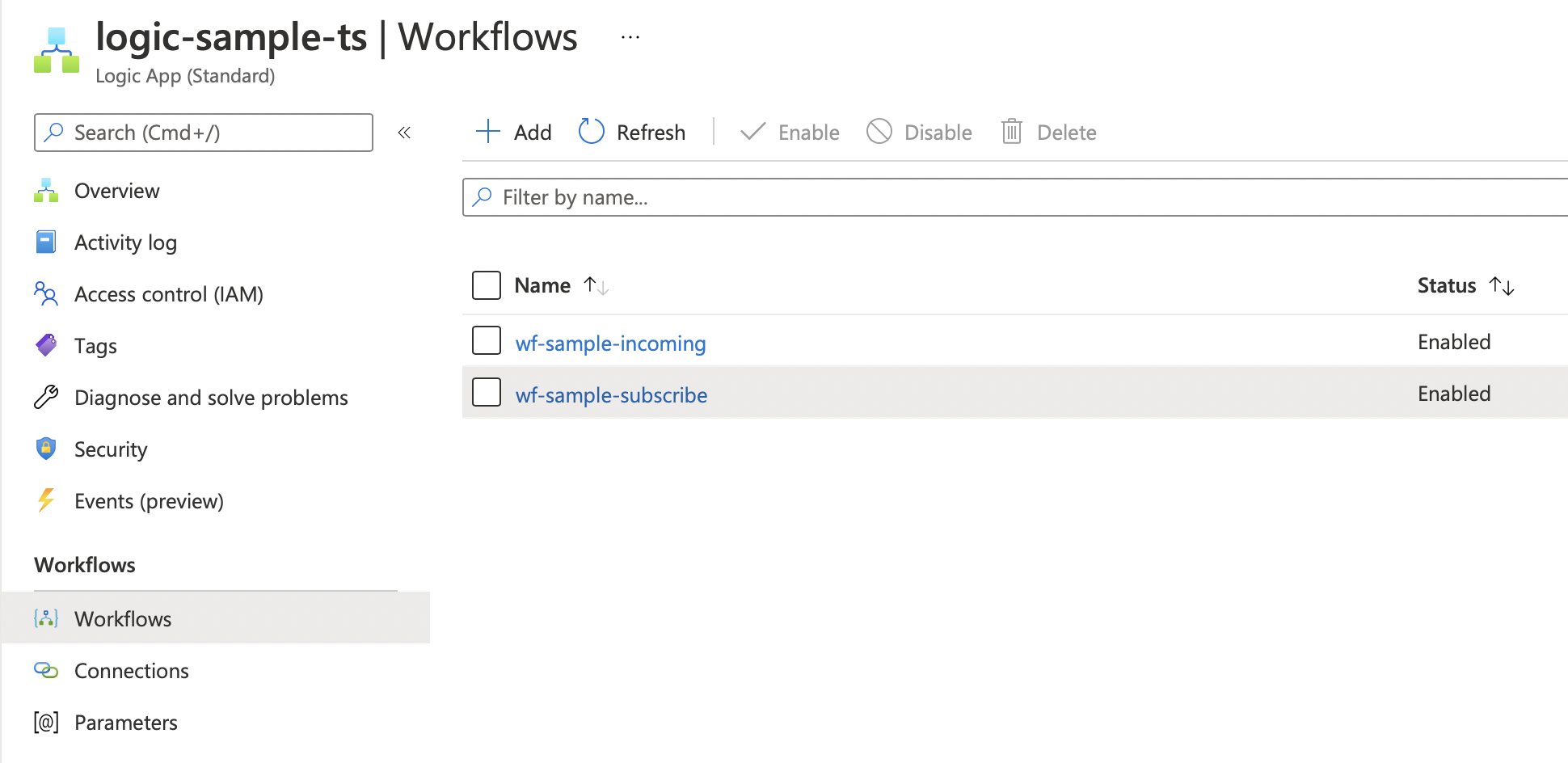
The workflow is now uploaded to the file share and is visible and working within our Logic App service.
Creating Connections
We use connections for accessing services inside a Logic App workflow. For example, to write to a storage queue or post messages to an Event Grid topic.
The type of connection is controlled by the Api parameter, and can be, for example:
- azureblob
- azurequeues
- keyvault
These have several parameters that need to be filled in, but the documentation is severely limited. If you don’t add them exactly right, you get a miscellaneous error.
If you need to access information on ARM properties that are not documented, then use ARMClient. After installing, run the command and the endpoint you are looking for. In my case, I was looking for the queues schema:
./ARMClient.exe get https://management.azure.com/subscriptions/00000000-0000-0000-0000-000000000000/providers/Microsoft.Web/locations/westeurope/managedApis/azurequeues?api-version=2016-06-01
You need to add your subscription identifier instead of the empty “0000” guid. The result is (abbreviated):
"properties": { "name": "azurequeues", "connectionParameters": { "storageaccount": { "type": "string", "uiDefinition": { "displayName": "Storage Account Name", "description": "The name of your storage account", "tooltip": "Provide the name of the storage account used for queues as it appears in the Azure portal", "constraints": { "required": "true" } } }, "sharedkey": { "type": "securestring", "uiDefinition": { "displayName": "Shared Storage Key", "description": "The shared storage key of your storage account", "tooltip": "Provide a shared storage key for the storage account used for queues as it appears in the Azure portal", "constraints": { "required": "true" } } } }, ...}This gives us the key information “sharedkey” and “storageaccount”, which allows us to complete the Bicep script and add the information required under parameterValues.
param name stringparam storage stringparam location string = resourceGroup().locationparam principalId stringparam logicApp string// Get parent storage accountresource storage_account 'Microsoft.Storage/storageAccounts@2021-06-01' existing = { name: storage}// Create connectionparam connection_name string = 'con-storage-queue-${name}'resource connection 'Microsoft.Web/connections@2016-06-01' = { name: connection_name location: location kind: 'V2' // Needed to get connectionRuntimeUrl later on properties: { displayName: connection_name api: { displayName: 'Azure Queues connection for "${name}"' description: 'Azure Queue storage provides cloud messaging between application components. Queue storage also supports managing asynchronous tasks and building process work flows.' id:subscriptionResourceId('Microsoft.Web/locations/managedApis', location, 'azurequeues') type: 'Microsoft.Web/locations/managedApis' } parameterValues: { 'storageaccount': storage_account.name 'sharedkey': listKeys(storage_account.id, storage_account.apiVersion).keys.value } }}// Create access policy for the connection// Type not in Bicep yet but works fineresource policy 'Microsoft.Web/connections/accessPolicies@2016-06-01' = { name: '${connection_name}/${logicApp}' location: location properties: { principal: { type: 'ActiveDirectory' identity: { tenantId: subscription().tenantId objectId: principalId } } } dependsOn: [ connection ]}// Return the connection runtime URL, this needs to be set in the connection JSON file lateroutput connectionRuntimeUrl string = reference(connection.id, connection.apiVersion, 'full').properties.connectionRuntimeUrloutput api string = subscriptionResourceId('Microsoft.Web/locations/managedApis', location, 'azureblob')output id string = connection.idoutput name string = connection.nameI also add a policy above so that the Logic App service account has read rights to the connection. Without this, you will get a warning stating that policies are missing when using the connection.
The connection must be deployed to the storage file system in the Logic App service, within a file called “connections.json”. I have created a PowerShell script to automate this.
function New-WorkflowConnection {    Param(
    $ResourceGroup,
    $StorageAccount,
    $Api,
    $Id,
    $RuntimeUrl    )    $ErrorActionPreference = "Stop"    $WarningPreference = "Continue"    $names =  $Id.Split('/')    $name = $names[$names.length - 1]    # Get current IP    $ip = (Invoke-WebRequest -uri "http://ifconfig.me/ip").Content    try {        Write-Host "Deploying workflow connection '" -NoNewLine        Write-Host $name -NoNewline -ForegroundColor Yellow        Write-Host "'..." -NoNewline        # Open firewall        Add-AzStorageAccountNetworkRule -ResourceGroupName $ResourceGroup -Name $StorageAccount -IPAddressOrRange $ip | Out-Null        # Connects the Azure context and sets the subscription.        New-RpicTenantConnection        # Static values        $directoryPath = "/site/wwwroot/"        # Get the storage account context        $ctx = (Get-AzStorageAccount -ResourceGroupName $ResourceGroup -Name $StorageAccount).Context        # Get the file share        $fsName = (Get-AZStorageShare -Context $ctx).Name        # Download connection file        $configPath = $directoryPath + "connections.json"        try {            Get-AzStorageFileContent -Context $ctx -ShareName $fsName -Path $configPath -Force            Start-Sleep -Seconds 5        } catch {            # No such file, create it            $newContent = @"{    "managedApiConnections": {    }}"@           Set-Content -Path "./connections.json" -Value $newContent        }        $config = Get-Content -Path "./connections.json" | ConvertFrom-Json        $sectionName = ('$config.managedApiConnections."' + $name + '"')        $section = Invoke-Expression $sectionName        if ($null -eq $section) {            # Section missing, add it            $value = @"    {        "api": {            "id": "$Api"        },        "authentication": {            "type": "ManagedServiceIdentity"        },        "connection": {            "id": "$Id"        },        "connectionRuntimeUrl": "$RuntimeUrl"    }"@            $config.managedApiConnections | Add-Member -Name $name -Value (Convertfrom-Json $value) -MemberType NoteProperty        } else {            # Update section just in case            $section.api.id = $Api            $section.connection.id = $Id            $section.connectionRuntimeUrl = $RuntimeUrl        }        # Save and upload file        $config | ConvertTo-Json -Depth 100 | Out-File ./connections.json        Set-AzStorageFileContent -Context $ctx -ShareName $fsName -Source ./connections.json  -Path $configPath  -Force        Remove-Item ./connections.json -Force    } finally {       # Remove the firewall rule       Remove-AzStorageAccountNetworkRule -ResourceGroupName $ResourceGroup -Name $StorageAccount -IPAddressOrRange $ip | Out-Null    }    Write-Host "Done!" -ForegroundColor Green}
The final part is to join the outputs from the connections Bicep above and use those with the New-WorkflowConnection command. To do that, I save the outputs of the deployment to a hash table.
$result = New-AzDeployment -Location $region -TemplateFile $template -TemplateParameterFile $parameters$outputs = @{}$result.Outputs.Keys | ForEach-Object { $outputs[$_] = $key = $_ $outputs[$key] = $result.Outputs[$_].Value}Write-Host "Outputs:"$outputs# Use outputs later on:$rg = $outputs["resourceGroup"]All in all, this took a lot of detective work, so I hope that this helps anyone else and that we get better official sample scripts in the future.

25 years building secure digital solutions for regulated and modern teams.